
Lesson: Getting Started with Scratch 3.0 – Basic Interactive Script –
Scratch 3.0 is a visual programming language designed to introduce coding skills to beginners through an intuitive block-based interface. It allows users to create interactive stories, games, and animations, making learning to code engaging and fun. Follow this detailed guide to get started with Scratch 3.0 and create a basic interactive script.
1. Access Scratch 3.0 – Getting Started with Scratch 3.0: Basic Interactive Script
Steps:
- Visit the Scratch website.
- Click on “Create” to start a new project.
2. Familiarize Yourself with the Interface – Getting Started with Scratch 3.0: Basic Interactive Script
Key Areas:
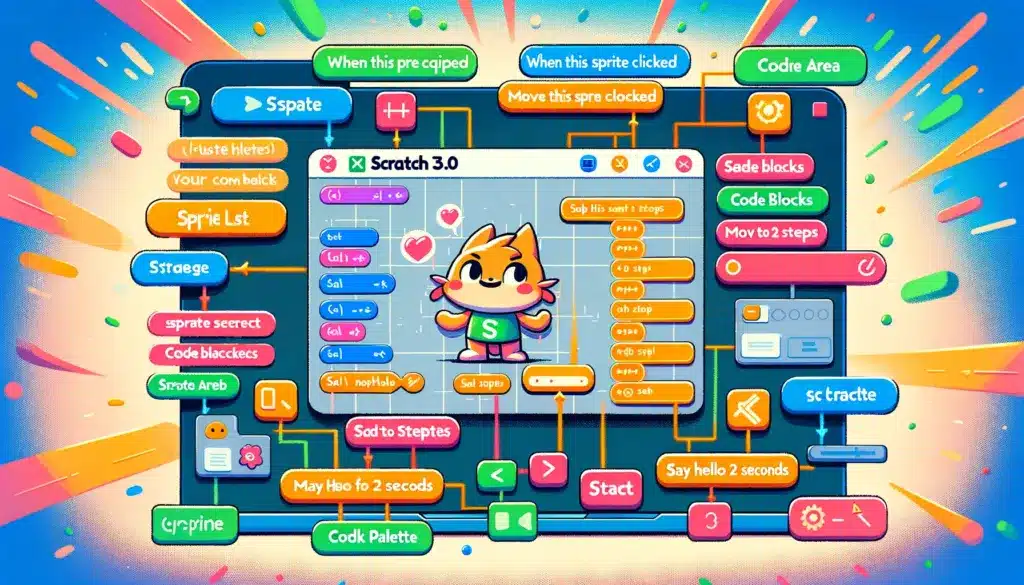
- Stage: The large area on the right where your project runs.
- Sprite List: Below the stage, where your characters (sprites) are listed.
- Code Area: The large area in the middle where you drag blocks to build scripts.
- Block Palette: The area on the left, containing the blocks you can use.
3. Creating a Simple Animation – Getting Started with Scratch 3.0: Basic Interactive Script
Steps:
- Add a Sprite:
- Click the sprite icon to add a new sprite from the library.
- Move the Sprite:
- Drag a
move 10 stepsblock from the “Motion” category into the code area and click it to move your sprite.
- Drag a
4. Making the Sprite React to Clicks
Steps:
- Event Handling:
- Drag a
when this sprite clickedblock from the “Events” category.
- Drag a
- Combine Actions:
- Attach a
say Hello! for 2 secondsblock (from the “Looks” category) below the event block.
- Attach a
5. Adding a Background
Steps:
- Change the Stage Background:
- Click the stage icon, then choose a backdrop from the library.
6. Control the Sprite with Arrow Keys
Steps:
- Add Event Blocks:
- Use
when key pressedblocks for each arrow key.
- Use
- Add Motion:
- Connect
turn clockwise 15 degreesormove 10 stepsblocks to the event blocks for directional control.
- Connect
7. Save and Share Your Project
Steps:
- Create an Account or Log In:
- Save your projects by creating an account or logging in.
- Share Your Project:
- Use the “Share” button to share your project with the Scratch community.
Illustration of Code Blocks
Here’s how to make a sprite move and say something when clicked:
- Event Block:
when this sprite clicked - Motion Block:
move 10 steps - Looks Block:
say Hello! for 2 seconds
Visual Guide – Getting Started with Scratch 3.0: Basic Interactive Script
Below is an illustration of the code blocks you will use:
Scratch’s drag-and-drop interface is designed to be very user-friendly, making it easy to create this simple script. Enjoy exploring and creating with Scratch 3.0!
Scratch Beginner Tutorial
Beginners Guide To Scratch (VERY Simple)
How to Make a Jumping Game in Scratch | Tutorial
Code a Platformer Game | 1. The Basics
Related Videos:

Related Posts:
Learning the Scratch 3 Online Interface(Opens in a new browser tab)
Introduction to Scratch – Lifelong Kindergarten Group(Opens in a new browser tab)
‘Scratch Day’ coming to Encinitas(Opens in a new browser tab)
Getting Started with CRM Software(Opens in a new browser tab)
Getting Started with CRM Software(Opens in a new browser tab)