
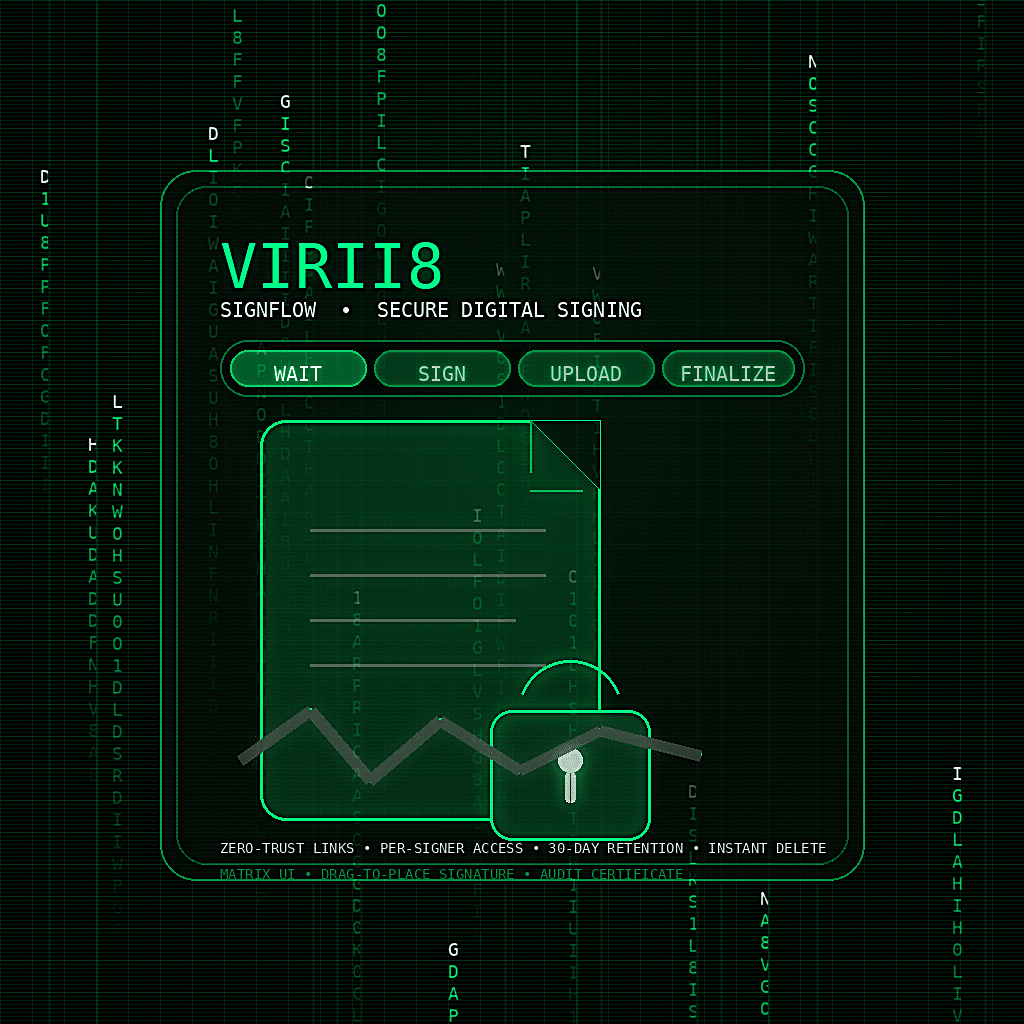
VIRII8
doc signing • route • certify • auto purge
1) Virii8 SignFlow – Roles and what each can do
Sender (the person who starts the request)
- Uploads the document(s) to be signed (PDF or Word/DOCX).
- Adds signer(s) (single signer or multi-recipient routing A → B → C).
- Sends invitations by email (each signer gets a unique link back to the portal).
- Can download originals, signed versions, and the certificate (audit record).
- Can delete/cancel the whole request at any time (immediate deletion + emails everyone).
Signer(s) (recipient(s) who sign)
- Access the portal via emailed link.
- Unlock the request with password:
- Either a shared password, or per-signer password (we added this option).
- First visit can require setting their own password (“set password” UX).
- Sign only when it is their turn (routing enforced).
- Choose signature method:
- Draw signature
- Type signature (rendered to image)
- Upload a scanned/printed signed PDF (manual route)
- Upload their signed PDF(s).
- Finalize their step (marks them completed, advances routing).
- Can cancel/delete the request (immediate deletion + emails everyone).
2) End-to-end workflow (exact sequence) – Virii8 SignFlow
Step A — Sender creates a signing request
- Sender submits:
- Request title
- Signer list (emails, order)
- Documents (PDF/DOCX)
- The system stores:
- Request record (status, timestamps)
- Signer records (position/order, status: pending/active/completed)
- File records (original stored, signed stored, metadata)
Result
- Signer #1 becomes active
- Signer #2+ become pending
- Emails go out to all signers (or only to the next signer, depending on your configured behavior)
Step B — Signer opens portal and unlocks
- Signer clicks their unique emailed link.
- Portal shows “Access” screen:
- Password input
- If the signer has no password set yet → shows “Set password” section
- After successful password:
- Portal loads request details
- Portal identifies signer:
- “YOU ARE: SIGNER X/Y”
- Badge “SIGNER X/Y”
Routing enforcement
- If signer is pending (not their turn), portal is read-only:
- They can see status and documents, but cannot sign/upload/finalize.
- Step bar shows WAIT as active.
Step C — WAIT → SIGN → UPLOAD → FINALIZE (step system)
1) WAIT (only for pending signers)
- Purpose: show clearly “you’re not up yet”
- UI behavior:
- WAIT is highlighted as active
- SIGN/UPLOAD/FINALIZE show as locked/inactive
- What signer can do:
- View documents (download originals)
- View signer list/status
- Cannot sign/upload/finalize
When earlier signers complete, this signer becomes active and WAIT is marked done.
2) SIGN (active signer)
Signer creates a signature “asset” for stamping:
Option A — Draw
- Touch/mouse draw on canvas
- “Use drawn” captures the drawing as a PNG image (client-side)
Option B — Type
- Type their name
- “Use typed” renders the typed name into a PNG image (client-side)
(Optional) Option C — No stamping
- They can ignore stamping and just upload a manually signed PDF later.
SIGN step is considered done when:
- they have selected a signature image (drawn/typed), or
- they are already completed (returning user)
3) UPLOAD (active signer)
This is the “produce signed documents” step.
Two ways to produce signed PDFs:
Path 1 — “Place & Stamp Signature” (best UX)
- Signer taps “Place & stamp signature”
- A modal opens:
- Shows a preview of the last page of the PDF (pdf.js)
- Places a draggable signature overlay on top
- Signer drags signature to exact location
- Adjusts size with slider
- Tap “Stamp & upload”
- Client-side logic:
- Fetches the current PDF
- Uses pdf.js for preview rendering (visual only)
- Converts the overlay position from screen pixels → PDF coordinates
- Uses pdf-lib to embed the signature image into the PDF
- Uploads the newly signed PDF back to your server
- Server stores:
- New signed file version
- Marks file’s
last_signed_signer_idto the current signer
Path 2 — Manual upload (print/sign/scan)
- Signer prints and signs (or signs offline)
- They scan/save as PDF
- Upload via “Pick signed PDF” + Upload button
- Server stores signed PDF and sets
last_signed_signer_id
UPLOAD step is considered done when:
- all files have a signed version uploaded by this signer (or signer completed)
4) FINALIZE (active signer)
Finalize marks the signer’s step complete and advances routing:
- “Finalize” becomes enabled only after UPLOAD is complete.
- Finalize action:
- Marks signer status = completed
- Sets completed timestamp
- If there is a next signer:
- Sets next signer status = active
- Emails next signer “it’s your turn”
- If this was the last signer:
- Marks request status = completed
- Sets request completed timestamp
- Emails all parties completion + links/downloads
3) What happens when all signing is done – Virii8 SignFlow
When the last signer finalizes:
- Request becomes Completed
- Completion email is sent (sender + all signers):
- Signed document download links
- Certificate link (audit record)
- Files remain stored for retention policy (see below) unless deleted earlier.
4) Retention policy and deletion behaviors – Virii8 SignFlow
Automatic retention deletion (30 days)
- A scheduled cleanup job deletes requests/files older than 30 days (based on created/completed timestamp depending on your policy).
- When auto-deleted:
- Server deletes:
- Original files
- Signed files
- Signature assets (if stored)
- Request + signer records (or anonymizes)
- Emails all parties:
- “Files have been automatically deleted due to retention policy.”
- Server deletes:
Manual delete/cancel (instant)
Any party (sender or any signer) can:
- Hit “Delete permanently”
- System immediately:
- Deletes all files + database rows
- Invalidates links/tokens (portal stops working)
- Emails all parties:
- “Signing process cancelled and data deleted immediately by: [party]”
This is both a privacy feature and a safety/cleanup feature.
5) Security model (how access is protected)
- Tokenized portal links: each invitation includes a unique token.
- Password protection:
- Shared password OR per-signer password.
- Password is verified server-side.
- Turn enforcement:
- Only the active signer can sign/upload/finalize.
- Pending signers are read-only (WAIT state).
6) Document handling (PDF vs Word)
- Supports in-browser stamping via pdf-lib.
- Supports preview/placement via pdf.js.
- Signed output stored as a new PDF version.
Word/DOCX
- Not stamped in-browser (as built).
- Workflow is “upload signed copy”:
- The signer downloads original DOCX, signs externally, uploads the signed PDF (or DOCX if you allow).
- You can optionally add a DOCX→PDF convert step later, but that typically requires paid APIs or server tooling.
7) Certificate / audit trail (recordkeeping)
Certificate is a downloadable “summary” proving what happened:
- Request metadata:
- Request ID, title, timestamps, completed status
- Signer chain:
- Signers in order, status, completed timestamps
- File summary:
- Original filenames
- Signed status
- Who uploaded last signed version
- Optional: include signature previews (small PNG thumbnails) per signer (we discussed as an option)
This helps with internal recordkeeping and “who did what when.”
8) UI/UX features (the “app feel”)
- Mobile-first layout (works well on phones/tablets)
- Dark theme: black background + neon green + white text
- Matrix-style visual vibe:
- Grid
- Neon borders
- “console/mono” look
- Top badges:
- Mode badge (sender/signer)
- “Signer X/Y” badge
- Step progress indicator:
- WAIT → SIGN → UPLOAD → FINALIZE
- Shows what stage you’re in and what’s locked
- Document cards:
- File type pill (PDF/DOC)
- Signed status pill
- “YOUR UPLOAD” vs “PREV UPLOAD”
- Signature modal:
- Live drag placement
- Size slider
- One-tap stamp & upload
9) Key “options” you can toggle (configuration-level)
- Single signer vs multi-signer routing
- Shared password vs per-signer password
- Certificate on/off
- Certificate includes signature preview thumbnails vs text-only
- Retention days (30 default)
- Whether non-active signers can download originals/signed copies or view-only metadata