Windows 11 Settings and Support
SYSTEM_LAUNCHER_V9.0...
█ STATUS: ROOT_ACCESS_GRANTED | NODE: LOCAL> SEARCH_RESULTS:
> SYSTEM_CONFIG:
- Display
- Advanced display settings
- Night light settings
- Sound
- Sound devices
- App volume & device prefs
- Notifications & actions
- Control Center / Action Center
- Focus assist
- Power & sleep
- Battery Saver
- Battery usage
- Storage
- Storage Sense
- Default Save Locations
- Tablet mode (Win10)
- Multitasking
- Projecting to this PC
- Shared experiences
- Clipboard
- Remote Desktop
- About this PC
- Graphics Default Settings
- Presence Sensing
> DEVICES_IO:
- Bluetooth & other devices
- Printers & scanners
- Mouse
- Touchpad
- Typing
- Hardware Text Suggestions
- Pen & Windows Ink
- AutoPlay
- USB
- Camera Settings
- Wheel (Surface Dial)
> PHONE_LINK:
- Your Phone
- Add a phone
> NETWORK_PROTOCOLS:
- Status
- Wi-Fi
- Manage known networks
- Ethernet
- Dial-up
- VPN
- Airplane mode
- Mobile hotspot
- Data usage
- Proxy
- DirectAccess (Enterprise)
> USER_INTERFACE:
- Background
- Colors
- Lock screen
- Themes
- Fonts
- Start
- Folders on Start
- Taskbar
- Touch Keyboard
- Customize Copilot Key (Win11)
> APPLICATIONS:
- Apps & features
- Default apps
- Offline maps
- Apps for websites
- Video playback
- Startup
- Manage optional features
> USER_ACCOUNTS:
- Your info
- Email & accounts
- Sign-in options
- Dynamic Lock
- Windows Hello Face
- Windows Hello Fingerprint
- Access work or school
- Family & other users
- Sync your settings
- Set up a kiosk
> TIME_AND_LANG:
- Date & time
- Region
- Language
- Speech
- Add display language
- Japan IME settings
- Korean IME settings
- Pinyin IME settings
- Wubi IME settings
- BPMF (Zhuyin) IME
- Cangjie IME
- Quick IME
> GAMING_MODES:
- Xbox Game Bar
- Captures
- Game Mode
- Xbox Networking
- Broadcasting
- Game Full Screen Mode
> ACCESSIBILITY:
- Display (Text Size)
- Mouse pointer
- Text cursor
- Magnifier
- Color filters
- High contrast
- Narrator
- Audio
- Closed captions
- Speech interaction
- Keyboard Access
- Mouse Access
- Eye control
> PRIVACY_POLICIES:
- General Privacy
- Cortana settings
- Cortana across devices
- Search Permissions
- Speech privacy
- Inking & typing
- Diagnostics & feedback
- Activity history
- Location
- Camera
- Microphone
- Voice activation
- Notifications
- Account info
- Contacts
- Calendar
- Phone calls
- Tasks
- Messaging
- Radios
- Other devices
- Background apps
- App diagnostics
- Automatic file downloads
- Documents
- Pictures
- Videos
- File system
- Spatial Perception
- Downloads Folder
- Music Library
- Motion
> SECURITY_PATCHES:
- Windows Update
- Check for Updates
- Update history
- Advanced options
- Active Hours
- Restart Options
- Seeker on Demand
- Delivery Optimization
- Windows Security
- Backup
- Troubleshoot
- Recovery
- Activation
- Find my device
- For developers
- Windows Insider Program
> MIXED_REALITY:
- Audio and speech
- Environment
- Headset display
- Uninstall Mixed Reality
- Startup and desktop
> ENTERPRISE_TOOLS:
- Extras (3rd Party)
- Enterprise Provisioning
- Mobile Provisioning
- Repair Token
- Windows Anywhere
- Surface Hub Accounts
- Team Conferencing
- Team device management
- Surface Hub Welcome
- Session Cleanup
> EXECUTION_HISTORY:
> SYS.OVERVIEW: Windows 11 Settings & Support_
The program is a web-based Windows Settings Launcher and Support tool designed to provide easy access to various Windows settings through a user-friendly interface. It includes multiple tabs categorized by different areas (Accounts, Apps, Devices, etc.). Each tab contains a drop-down menu with options to directly launch specific settings.
> SYSTEM_ARCHITECTURE: How It Works_
[01] HTML Structure
Defines the layout of the application, including the tabs and the drop-down menus for each category of settings.
[02] CSS Styling
Provides the visual styling for the page, including the dark theme, tab design, and drop-down menu appearance.
[03] JavaScript Logic
- Tab Switching: The
showTabfunction toggles the active class for tabs and content areas. - Settings Launching: The
launchSettingsfunction redirects users via the URI defined in the dropdown value.
> SYS.MODULE: Search Feature_
Allows users to quickly find and access specific settings by typing keywords. Results are dynamically filtered based on visible text and underlying URI values.
[INPUT] Search Box
An input field (search-box) where users type queries.
[PROCESS] Dynamic Filtering
The searchSettings function filters all dropdown options.
[OUTPUT] Results Display
Matches display in search-results as clickable URI links.
> ROOT_OVERRIDE: Activate Windows G-d Mode_
[?] WHAT IS WINDOWS G-D MODE?
Those who want to configure hardware, software, devices, and updates usually use the standard Control Panel. However, its hierarchical folder structures can be confusing. Windows G-d Mode simplifies access to 250 control panel settings, lists everything in one convenient list, and creates a central shortcut on the desktop for instant access.
The term comes from the gamer scene, where it refers to cheats that make players immortal. In Windows, G-d Mode offers numerous “G-d-like” freedoms for managing the OS. Yes, nerds.
> EXECUTION_SEQUENCE: Initialization_
-
Enter this folder name exactly:
Launch the Windows Settings app
Important APIs
Learn how to launch the Windows Settings app. This topic describes the ms-settings: URI scheme. Use this URI scheme to launch the Windows Settings app to specific settings pages.
Launching to the Settings app is an important part of writing a privacy-aware app. If your app can’t access a sensitive resource, we recommend providing the user a convenient link to the privacy settings for that resource. For more info, see Guidelines for privacy-aware apps.
How to launch the Settings app
To launch the Settings app, use the ms-settings: URI scheme as shown in the following examples.
XAML hyperlink control
In this example, a Hyperlink XAML control is used to launch the privacy settings page for the microphone using the ms-settings:privacy-microphone URI.
XML
<TextBlock x:Name="LocationDisabledMessage" FontStyle="Italic"
                 Visibility="Collapsed" Margin="0,15,0,0" TextWrapping="Wrap" >
          <Run Text="This app is not able to access the microphone. Go to " />
              <Hyperlink NavigateUri="ms-settings:privacy-microphone">
                  <Run Text="Settings" />
              </Hyperlink>
          <Run Text=" to check the microphone privacy settings."/>
</TextBlock>
Calling LaunchUriAsync
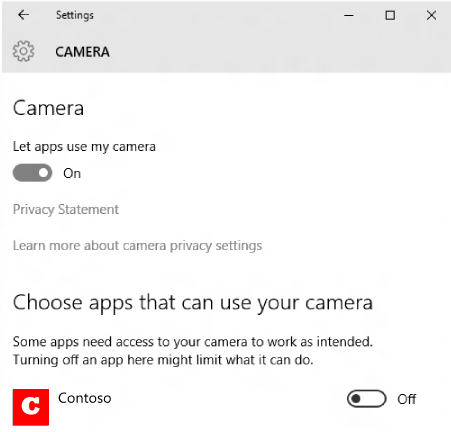
Alternatively, your app can call the LaunchUriAsync method to launch the Settings app. This example shows how to launch to the privacy settings page for the camera using the ms-settings:privacy-webcam URI.
cs
bool result = await Windows.System.Launcher.LaunchUriAsync(new Uri("ms-settings:privacy-webcam"));
C++/WinRT
bool result = co_await Windows::System::Launcher::LaunchUriAsync(Windows::Foundation::Uri(L"ms-settings:privacy-webcam"));
The code above launches the privacy settings page for the camera:
For more info about launching URIs, see Launch the default app for a URI.
ms-settings: URI scheme reference
The following sections describe different categories of ms-settings URIs used to open various pages of the Settings app:
- Accounts
- Apps
- Control Center
- Cortana
- Devices
- Ease of access
- Extras
- Family Group
- Gaming
- Mixed reality
- Network and internet
- Personalization
- Phone
- Privacy
- Search
- Surface Hub
- System
- Time and language
- Update and security
- User accounts
Note
Whether a settings page is available varies by Windows SKU. The notes column also captures additional requirements that must be met for a page to be available.
Accounts
| Settings page | URI |
|---|---|
| Access work or school | ms-settings:workplace |
| Email & app accounts | ms-settings:emailandaccounts |
| Family & other people | ms-settings:otherusers |
| Set up a kiosk | ms-settings:assignedaccess |
| Sign-in options | ms-settings:signinoptions ms-settings:signinoptions-dynamiclock |
| Sync your settings | ms-settings:sync ms-settings:backup (Backup page deprecated in Windows 11) |
| Windows Hello setup | ms-settings:signinoptions-launchfaceenrollment ms-settings:signinoptions-launchfingerprintenrollment |
| Your info | ms-settings:yourinfo |
Apps
| Settings page | URI |
|---|---|
| Apps & Features | ms-settings:appsfeatures |
| App features |
ms-settings:appsfeatures-app (Reset, manage add-on & downloadable content, etc. for the app) To access this page with a URI, use the ms-settings:appsfeatures-app URI and pass an optional parameter of the package family name of the app. |
| Apps for websites | ms-settings:appsforwebsites |
| Default apps | ms-settings:defaultapps (Behavior introduced in Windows 11, version 21H2 (with 2023-04 Cumulative Update) or 22H2 (with 2023-04 Cumulative Update), or later.) Append the query string parameter in the following formats using the Uri-escaped name of an app to directly launch the default settings page for that app:- registeredAppMachine= – registeredAppUser= – registeredAUMID=For more information, see Launch the Default Apps settings page. |
| Default browser settings | ms-settings:defaultbrowsersettings (Deprecated in Windows 11) |
| Manage optional features | ms-settings:optionalfeatures |
| Offline Maps | ms-settings:maps ms-settings:maps-downloadmaps (Download maps) |
| Startup apps | ms-settings:startupapps |
| Video playback | ms-settings:videoplayback |
Control Center
| Settings page | URI |
|---|---|
| Control center | ms-settings:controlcenter |
Cortana
| Settings page | URI |
|---|---|
| Cortana across my devices | ms-settings:cortana-notifications |
| More details | ms-settings:cortana-moredetails |
| Permissions & History | ms-settings:cortana-permissions |
| Searching Windows | ms-settings:cortana-windowssearch |
| Talk to Cortana | ms-settings:cortana-language ms-settings:cortana ms-settings:cortana-talktocortana |
Note
This Settings section on desktop will be called Search when the PC is set to regions where Cortana is not currently available or Cortana has been disabled. Cortana-specific pages (Cortana across my devices, and Talk to Cortana) will not be listed in this case.
Devices
| Settings page | URI |
|---|---|
| AutoPlay | ms-settings:autoplay |
| Bluetooth | ms-settings:bluetooth |
| Connected Devices | ms-settings:connecteddevices |
| Default camera | ms-settings:camera (Behavior deprecated in Windows 11, version 1809 and later) |
| Camera settings | ms-settings:camera (Behavior introduced in Windows 11, build 22000 and later) Append the query string parameter cameraId set to the Uri-escaped symbolic link name of a camera device to directly launch the settings for that camera. For more information, see Launch the camera settings page. |
| Mouse & touchpad | ms-settings:mousetouchpad (touchpad settings only available on devices that have a touchpad) |
| Pen & Windows Ink | ms-settings:pen |
| Printers & scanners | ms-settings:printers |
| Touch | ms-settings:devices-touch |
| Touchpad | ms-settings:devices-touchpad (only available if touchpad hardware is present) |
| Text Suggestions | ms-settings:devicestyping-hwkbtextsuggestions |
| Typing | ms-settings:typing |
| USB | ms-settings:usb |
| Wheel | ms-settings:wheel (only available if Dial is paired) |
| Your phone | ms-settings:mobile-devices |
Ease of access
| Settings page | URI |
|---|---|
| Audio | ms-settings:easeofaccess-audio |
| Closed captions | ms-settings:easeofaccess-closedcaptioning |
| Color filters | ms-settings:easeofaccess-colorfilter ms-settings:easeofaccess-colorfilter-adaptivecolorlink ms-settings:easeofaccess-colorfilter-bluelightlink |
| Display | ms-settings:easeofaccess-display |
| Eye control | ms-settings:easeofaccess-eyecontrol |
| Fonts | ms-settings:fonts |
| High contrast | ms-settings:easeofaccess-highcontrast |
| Keyboard | ms-settings:easeofaccess-keyboard |
| Magnifier | ms-settings:easeofaccess-magnifier |
| Mouse | ms-settings:easeofaccess-mouse |
| Mouse pointer & touch | ms-settings:easeofaccess-mousepointer |
| Narrator | ms-settings:easeofaccess-narrator ms-settings:easeofaccess-narrator-isautostartenabled |
| Speech | ms-settings:easeofaccess-speechrecognition |
| Text cursor | ms-settings:easeofaccess-cursor |
| Visual Effects | ms-settings:easeofaccess-visualeffects |
Extras
| Settings page | URI |
|---|---|
| Extras | ms-settings:extras (only available if “settings apps” are installed, for example, by a 3rd party) |
Family Group
| Settings page | URI |
|---|---|
| Family Group | ms-settings:family-group |
Gaming
| Settings page | URI |
|---|---|
| Game bar | ms-settings:gaming-gamebar |
| Game DVR | ms-settings:gaming-gamedvr |
| Game Mode | ms-settings:gaming-gamemode |
| Playing a game full screen | ms-settings:quietmomentsgame |
| TruePlay | ms-settings:gaming-trueplay (As of Windows 11, version 1809 (10.0; Build 17763), this feature is removed from Windows) |
Mixed reality
Note
These settings are only available if the Mixed Reality Portal app is installed.
| Settings page | URI |
|---|---|
| Audio and speech | ms-settings:holographic-audio |
| Environment | ms-settings:privacy-holographic-environment |
| Headset display | ms-settings:holographic-headset |
| Uninstall | ms-settings:holographic-management |
| Startup and desktop | ms-settings:holographic-startupandesktop |
Network and internet
| Settings page | URI |
|---|---|
| Network & internet | ms-settings:network-status |
| Advanced settings | ms-settings:network-advancedsettings |
| Airplane mode | ms-settings:network-airplanemode ms-settings:proximity |
| Cellular & SIM | ms-settings:network-cellular |
| Dial-up | ms-settings:network-dialup |
| DirectAccess | ms-settings:network-directaccess (only available if DirectAccess is enabled) |
| Ethernet | ms-settings:network-ethernet |
| Manage known networks | ms-settings:network-wifisettings |
| Mobile hotspot | ms-settings:network-mobilehotspot |
| Proxy | ms-settings:network-proxy |
| VPN | ms-settings:network-vpn |
| Wi-Fi | ms-settings:network-wifi (only available if the device has a wifi adapter) |
| Wi-Fi provisioning | ms-settings:wifi-provisioning |
Personalization
| Settings page | URI |
|---|---|
| Background | ms-settings:personalization-background |
| Choose which folders appear on Start | ms-settings:personalization-start-places |
| Colors | ms-settings:personalization-colors ms-settings:colors |
| Dynamic Lighting | ms-settings:personalization-lighting |
| Glance | ms-settings:personalization-glance (Deprecated in Windows 11, version 1809 and later) |
| Lock screen | ms-settings:lockscreen |
| Navigation bar | ms-settings:personalization-navbar (Deprecated in Windows 11, version 1809 and later) |
| Personalization (category) | ms-settings:personalization |
| Start | ms-settings:personalization-start |
| Taskbar | ms-settings:taskbar |
| Touch Keyboard | ms-settings:personalization-touchkeyboard |
| Themes | ms-settings:themes |
Phone
| Settings page | URI |
|---|---|
| Your phone | ms-settings:mobile-devices ms-settings:mobile-devices-addphone ms-settings:mobile-devices-addphone-direct (Opens Your Phone app) |
| Device Usage | ms-settings:deviceusage |
Privacy
| Settings page | URI |
|---|---|
| Accessory apps | ms-settings:privacy-accessoryapps (Deprecated in Windows 11, version 1809 and later) |
| Account info | ms-settings:privacy-accountinfo |
| Activity history | ms-settings:privacy-activityhistory |
| Advertising ID | ms-settings:privacy-advertisingid (Deprecated in Windows 11, version 1809 and later) |
| App diagnostics | ms-settings:privacy-appdiagnostics |
| Automatic file downloads | ms-settings:privacy-automaticfiledownloads |
| Background Apps |
ms-settings:privacy-backgroundapps (Deprecated in Windows 11, 21H2 and later) Note: In Windows 11, the background app permissions are accessed individually. To view the permissions, go to Apps->Installed apps and then select “…” on a modern app and choose Advanced options. The advanced page is present for modern apps, and the Background apps permissions section will be present unless a group policy has been set or the user’s global toggle value (the deprecated setting from Windows 11) is set. To access this page with a URI, use the |
| Background Spatial Perception | ms-settings:privacy-backgroundspatialperception |
| Calendar | ms-settings:privacy-calendar |
| Call history | ms-settings:privacy-callhistory |
| Camera | ms-settings:privacy-webcam |
| Contacts | ms-settings:privacy-contacts |
| Documents | ms-settings:privacy-documents |
| Downloads folder | ms-settings:privacy-downloadsfolder |
| ms-settings:privacy-email | |
| Eye tracker | ms-settings:privacy-eyetracker (requires eyetracker hardware) |
| Feedback & diagnostics | ms-settings:privacy-feedback |
| File system | ms-settings:privacy-broadfilesystemaccess |
| General | ms-settings:privacy or ms-settings:privacy-general |
| Graphics | ms-settings:privacy-graphicscaptureprogrammatic ms-settings:privacy-graphicscapturewithoutborder |
| Inking & typing | ms-settings:privacy-speechtyping |
| Location | ms-settings:privacy-location |
| Messaging | ms-settings:privacy-messaging |
| Microphone | ms-settings:privacy-microphone |
| Motion | ms-settings:privacy-motion |
| Music Library | ms-settings:privacy-musiclibrary |
| Notifications | ms-settings:privacy-notifications |
| Other devices | ms-settings:privacy-customdevices |
| Phone calls | ms-settings:privacy-phonecalls |
| Pictures | ms-settings:privacy-pictures |
| Radios | ms-settings:privacy-radios |
| Speech | ms-settings:privacy-speech |
| Tasks | ms-settings:privacy-tasks |
| Videos | ms-settings:privacy-videos |
| Voice activation | ms-settings:privacy-voiceactivation |
Search
| Settings page | URI |
|---|---|
| Search | ms-settings:search |
| Search more details | ms-settings:search-moredetails |
| Search Permissions | ms-settings:search-permissions |
Surface Hub
| Settings page | URI |
|---|---|
| Accounts | ms-settings:surfacehub-accounts |
| Session cleanup | ms-settings:surfacehub-sessioncleanup |
| Team Conferencing | ms-settings:surfacehub-calling |
| Team device management | ms-settings:surfacehub-devicemanagement |
| Welcome screen | ms-settings:surfacehub-welcome |
System
| Settings page | URI |
|---|---|
| About | ms-settings:about |
| Advanced display settings | ms-settings:display-advanced (only available on devices that support advanced display options) |
| App volume and device preferences | ms-settings:apps-volume (Added in Windows 11, version 1903) |
| Battery Saver | ms-settings:batterysaver (only available on devices that have a battery, such as a tablet) |
| Battery Saver settings | ms-settings:batterysaver-settings (only available on devices that have a battery, such as a tablet) |
| Battery use | ms-settings:batterysaver-usagedetails (only available on devices that have a battery, such as a tablet) |
| Clipboard | ms-settings:clipboard |
| Display | ms-settings:display |
| Default Save Locations | ms-settings:savelocations |
| Display | ms-settings:screenrotation |
| Duplicating my display | ms-settings:quietmomentspresentation |
| During these hours | ms-settings:quietmomentsscheduled |
| Encryption | ms-settings:deviceencryption |
| Energy recommendatations | ms-settings:energyrecommendations (Added in February Moment update for Windows 11, Version 22H2, Build 22624) |
| Focus assist | ms-settings:quiethours |
| Graphics Settings | ms-settings:display-advancedgraphics (only available on devices that support advanced graphics options) |
| Graphics Default Settings | ms-settings:display-advancedgraphics-default |
| Multitasking | ms-settings:multitasking ms-settings:multitasking-sgupdate |
| Night light settings | ms-settings:nightlight |
| Projecting to this PC | ms-settings:project |
| Shared experiences | ms-settings:crossdevice |
| Tablet mode | ms-settings:tabletmode (Removed in Windows 11) |
| Taskbar | ms-settings:taskbar |
| Notifications & actions | ms-settings:notifications |
| Remote Desktop | ms-settings:remotedesktop |
| Phone | ms-settings:phone (Deprecated in Windows 11, version 1809 and later) |
| Power & sleep | ms-settings:powersleep |
| Presence sensing | ms-settings:presence (Added in May Moment update for Windows 11, Version 22H2, Build 22624) |
| Sound | ms-settings:sound |
| Sound devices | ms-settings:sound-devices |
| Storage | ms-settings:storagesense |
| Storage Sense | ms-settings:storagepolicies |
| Storage recommendations | ms-settings:storagerecommendations |
| Disks & volumes | ms-settings:disksandvolumes |
Time and language
| Settings page | URI |
|---|---|
| Date & time | ms-settings:dateandtime |
| Japan IME settings | ms-settings:regionlanguage-jpnime (available if the Microsoft Japan input method editor is installed) |
| Region | ms-settings:regionformatting |
| Language | ms-settings:keyboard ms-settings:keyboard-advanced ms-settings:regionlanguage ms-settings:regionlanguage-bpmfime ms-settings:regionlanguage-cangjieime ms-settings:regionlanguage-chsime-wubi-udp ms-settings:regionlanguage-quickime ms-settings:regionlanguage-korime |
| Pinyin IME settings | ms-settings:regionlanguage-chsime-pinyin (available if the Microsoft Pinyin input method editor is installed) ms-settings:regionlanguage-chsime-pinyin-domainlexicon ms-settings:regionlanguage-chsime-pinyin-keyconfig ms-settings:regionlanguage-chsime-pinyin-udp |
| Speech | ms-settings:speech |
| Wubi IME settings | ms-settings:regionlanguage-chsime-wubi (available if the Microsoft Wubi input method editor is installed) |
| Add display language | ms-settings:regionlanguage-adddisplaylanguage |
| Language options | ms-settings:regionlanguage-languageoptions |
| Set display language | ms-settings:regionlanguage-setdisplaylanguage |
Update and security
| Settings page | URI |
|---|---|
| Activation | ms-settings:activation |
| Backup | ms-settings:backup (page removed in Windows 11; opens Sync) |
| Delivery Optimization | ms-settings:delivery-optimization ms-settings:delivery-optimization-activity ms-settings:delivery-optimization-advanced |
| Find My Device | ms-settings:findmydevice |
| For developers | ms-settings:developers |
| Recovery | ms-settings:recovery |
| Launch Security Key Enrollment | ms-settings:signinoptions-launchsecuritykeyenrollment |
| Troubleshoot | ms-settings:troubleshoot |
| Windows Security | ms-settings:windowsdefender |
| Windows Insider Program | ms-settings:windowsinsider (only present if user is enrolled in WIP) ms-settings:windowsinsider-optin |
| Windows Update | ms-settings:windowsupdate ms-settings:windowsupdate-action |
| Windows Update-Active hours | ms-settings:windowsupdate-activehours |
| Windows Update-Advanced options | ms-settings:windowsupdate-options |
| Windows Update-Optional updates | ms-settings:windowsupdate-optionalupdates |
| Windows Update-Restart options | ms-settings:windowsupdate-restartoptions |
| Windows Update-Seeker on demand | ms-settings:windowsupdate-seekerondemand |
| Windows Update-View update history | ms-settings:windowsupdate-history |
User accounts
| Settings page | URI |
|---|---|
| Provisioning | ms-settings:workplace-provisioning (only available if enterprise has deployed a provisioning package) |
| Repair token | ms-settings:workplace-repairtoken |
| Provisioning | ms-settings:provisioning (only available on mobile and if the enterprise has deployed a provisioning package) |
| Windows Anywhere | ms-settings:windowsanywhere (device must be Windows Anywhere-capable) |
See also
Launch the default app for a URI
Related Posts:
WordPress FAQ
Microsoft Windows 10 FAQs
Troubleshooting and Support FAQs
How to make Windows 10 look and feel like Windows 7
What is Windows 10 and how can I access the free Windows 10 upgrade?