Approx. read time: 4.6 min.
Post: “Keep WiFi on during sleep” setting for Chromebooks
As of 2024, Google has mostly kept the “Keep WiFi on during sleep” (also referred to as “Lucid Sleep”) functionality in place for Chromebooks, though some menu labels and locations may have shifted slightly across different ChromeOS versions. Below is an updated overview of how the feature works, its benefits, and where to find the setting on modern Chromebooks.
Keep WiFi on during sleep” setting for
Chromebooks.
‘Lucid Sleep‘ keeps your
Chromebook connected during naps (sleep mode).
Getting back to work after awaking your
Chromebook from its digital slumber (sleep) is about to get a bit easier.
Google announced that its new (still experimental)
Lucid Sleep feature is now available.
This setting maintains limited Wi-Fi connectivity when the
Chromebook is powered down so that it can stay better
synced with the rest of your devices and data.
It will, for example, allow your
Chromebook
to temporarily awake itself (turn on
WiFi) and connect to a new
wireless hotspot if you change locations.
It can also update
push notifications and
app data
so that everything is up to date and ready to go as soon as you flip open the Chromebook screen. You can turn on this feature and try it for yourself by toggling on the
“Keep WiFi on during sleep”
in the Privacy settings menu on your Chromebook.
The question is should you
enable or
disable the
“Keep WiFi on during sleep” setting for
Chromebooks?The simple answer is how much do you appreciate longer battery life?
If you choose longer battery life then consider
disable
“Keep WiFi on during sleep” option.
At the end of the day, its a matter of preference.
1)
Open your Chromebooks privacy settings page.
a.
Click on the bottom right hand side of your
Chromebooks display.
(time, notification area, etc…) A small pop-up box will appear (in my case the box is black).
Click the rounded gear icon

to open the
Chromebook settings window.
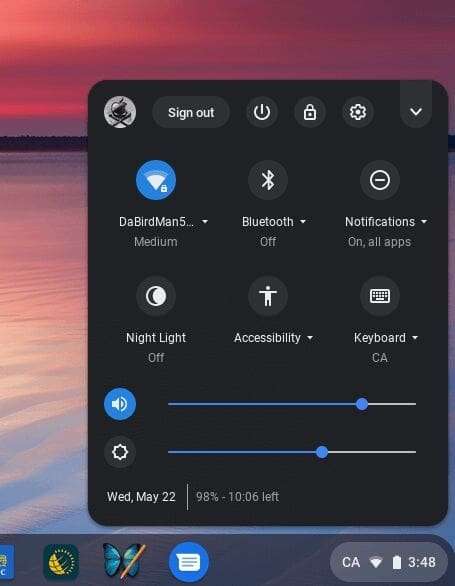
“Keep Wifi On During Sleep” Setting For Chromebooks
b.
Once the
Chromebook settings window opens scroll down to the
Advanced section (expand that downward with arrow.) Then Under
Privacy and security section you will see the option toggle for
“Keep Wifi on during sleep“.
See image below.
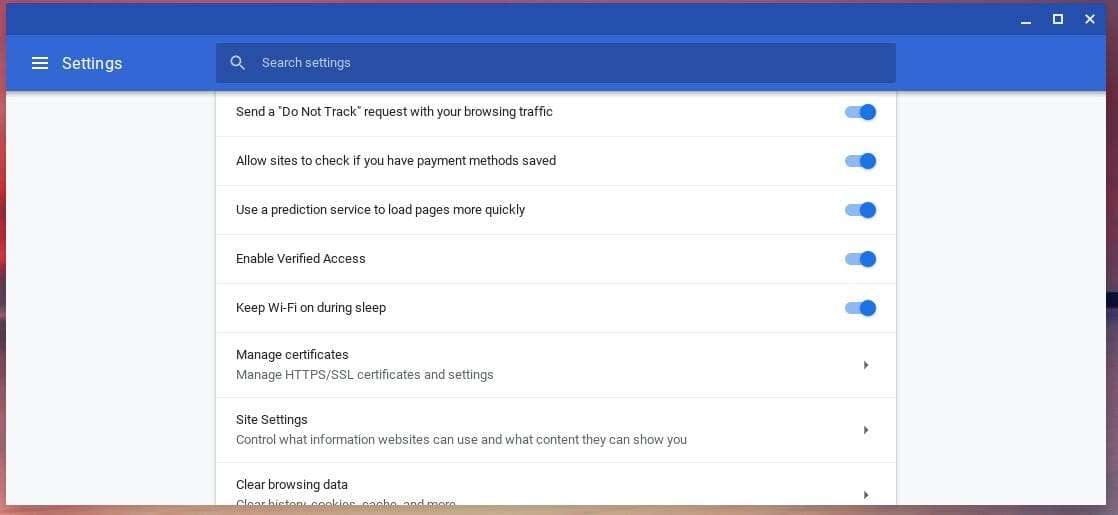
In This Image The “Keep Wifi On During Sleep” Setting For Chromebooks Is On. To Turn Off, Move The Toggle Switch To The Left.
How to enable “Keep WiFi on during sleep” setting for Chromebooks
Enable the “Keep WiFi on during sleep” option is a good idea and keeps your devices and data synced. It also automatically updates data and apps while sleeping.
A) Open Chromebook Privacy Settings.
B) Select the toggle switch beside “Keep
WiFi on during sleep” to the on position.
(switch to the right) (see image of Chromebook privacy and security menu above)
How to disable “Keep WiFi on during sleep” setting for Chromebooks
Disable the “Keep WiFi on during sleep” option to save battery power, or bandwidth data.
Sometimes you need to balance your battery life and make it last longer. You dont always need Google
Chromebook to automatically fetch updates and constantly keeping your device synced even in sleep mode.
I recommend disabling the “Keep WiFi on during sleep”
option to
get even more out of the 10hr battery life
offered by most
Chromebooks.
A) Open Chromebook Privacy Settings.
B) Select the toggle switch beside “Keep
WiFi on during sleep” to the off position.
(switch to the left.) (see image of Chromebook privacy and security menu above)
Where to Find “Keep WiFi on During Sleep” in 2024
The general process described above remains valid for most modern Chromebooks. However, if you are on a school or work (enterprise) Chromebook, your organization may have disabled or locked these settings. Additionally, some newer Chrome OS versions might relocate this toggle to:
- Device > Power
- Network
- Advanced submenus
If you can’t locate the toggle, ensure your Chromebook is fully updated (type chrome://settings/help in your Chrome browser bar to check for updates), or consult your administrator if you use a managed Chromebook.
Conclusion: Choose Based on Your Needs
Ultimately, whether you leave WiFi on during sleep boils down to battery life vs. convenience. If staying continuously synced is crucial, keep it enabled. If you prefer to maximize battery life, disabling it can help your Chromebook last significantly longer on a single charge.
Online Sources & Citations
- Wi-Fi on Wikipedia
- Chromium OS Lucid Sleep Design Docs
- Google Chromebook Official Support – Adjusting Sleep & WiFi Settings
- Chrome Computing: The Chromebook’s Battery Life
- Push Notifications on Wikipedia
- Hotspot on Wikipedia
- Android Stack Exchange – App Data Explanation
All links verified as working at the time of publication.
Note: If you’re running into any issues or seeing different menu labels, your Chromebook may be running an experimental build or be enterprise-managed. Always ensure you’re using the latest Chrome OS version for the most accurate settings layout.
Related Videos:

Related Posts:
Staying Safe on Public WiFi: Essential Tips and Best Practice
WiFi Password Hacking for Beginners
How Do I Perform a Factory Reset – Powerwash on My Chromebook?
Make your Chromebook or Google Chrome run super faster
Cybersecurity & Networking: Safeguard Your Digital Life
Google brings one-click install for Android Studio on Chrome OS
Related Posts






The Longevity Blueprint: AI-Powered Health Optimization
About the Author: Bernard Aybout (Virii8)