Approx. read time: 12.5 min.
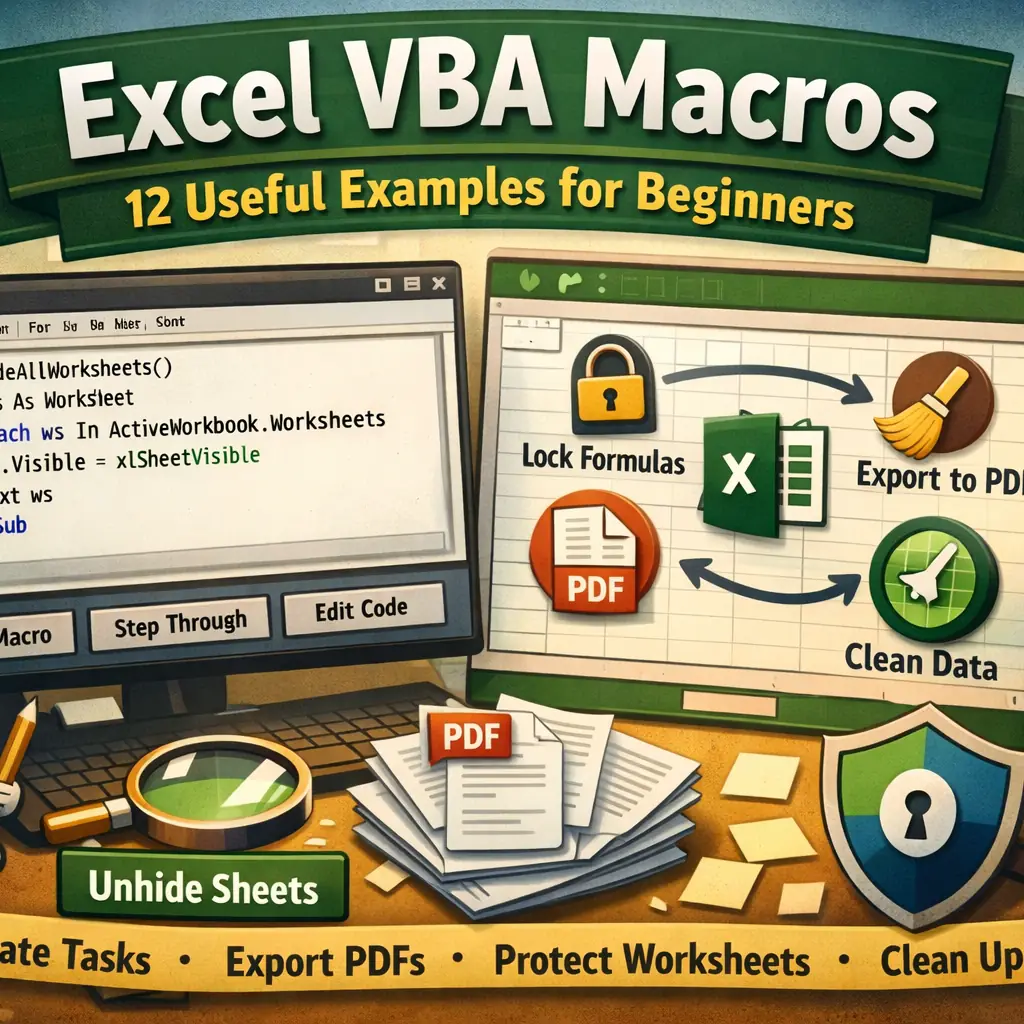
Post: Excel VBA Macros: 12 Useful Examples for Beginners
Excel VBA Macros: 12 Useful Examples for Beginners
If you’ve ever thought, “Why am I doing the same Excel task again?”, you’re exactly the kind of person who should learn Excel VBA macros. Macros let you automate routine work inside Excel: hiding and unhiding sheets, exporting to PDF, cleaning up messy spreadsheets, protecting formulas, and more.
Some people hear “VBA” and assume it’s only for hardcore programmers. Nope. Most Excel VBA macros are short, readable, and easy to reuse. You don’t need to be a developer. You just need a few solid examples (you’re about to get 12) and the confidence to test them safely.
By the end of this guide, you’ll understand what a macro is, how to access it, when it’s smart to use it, and you’ll have copy/paste-ready Excel VBA macros you can run today.
Quick links (in this article): Jump to the 12 macro examples · Jump to the FAQs
🧠 What is a macro in Excel?
A macro is a small piece of code that tells Excel to perform actions automatically. Think of it like a recorded set of steps, except better: you can edit it, improve it, and reuse it whenever you want.
People often use the words “macro” and “VBA” like they mean the same thing. They’re related, but not identical:
- Macro = the automation you run (the “button” you click).
- VBA = the language used to write that macro (Visual Basic for Applications).
The reason Excel VBA macros are so popular is simple: they save time, reduce mistakes, and make your spreadsheets feel like tools instead of chores.
🧰 How to access macros (Developer tab)
To create or run Excel VBA macros, you need the Developer tab. Excel often hides it by default.
🪟 Windows: enable the Developer tab
- Click File → Options
- Click Customize Ribbon
- Check Developer
- Click OK
🍎 Mac: enable the Developer tab
- Click Excel (top menu) → Preferences
- Go to Ribbon & Toolbar (or similar, depending on version)
- Enable Developer
Authoritative reference: Microsoft Support explains how to show the Developer tab here:
Show the Developer tab in Excel
🔒 Macro safety: don’t get burned
Let’s be blunt: macros can be used for good or for chaos. Your rule should be simple:
- Only run Excel VBA macros you wrote yourself or trust completely.
- Test new macros on a copy of your workbook first.
- Save versions before running anything that changes lots of cells or sheets.
In many cases, Excel will warn you when a workbook contains macros. That warning exists for a reason. Treat it like a “check the label before you drink” moment.
Internal tip: If you want help turning these into a reusable “Macro Pack” for your workflow, save this article to your bookmarks and come back anytime.
✅ Pros of learning VBA (why it still matters)
Even with newer tools out there, Excel VBA macros are still worth learning because:
- Excel is everywhere in offices (love it or hate it, it’s true).
- You can automate reports, cleanup tasks, exports, and formatting fast.
- You don’t need to install anything extra to start.
- VBA teaches programming habits: variables, loops, logic, debugging.
Most people don’t need a perfect tech stack. They need their work done faster. Excel VBA macros deliver that.
⚠️ Cons and limits (the honest truth)
VBA isn’t magic. It has real limitations:
- VBA mostly lives inside Microsoft Office apps.
- It’s not the best choice for modern app development.
- It can be harder to collaborate with, compared to modern version-controlled codebases.
Still, if your job runs on spreadsheets, Excel VBA macros are one of the highest return skills you can learn in a weekend.
🆚 VBA vs Python vs Office Scripts (which should you learn?)
Here’s the practical way to think about it:
| Goal | Best fit | Why |
|---|---|---|
| Automate tasks inside desktop Excel | Excel VBA macros | Built-in and fast for workbook actions. |
| Automate Excel on the web (Microsoft 365) | Office Scripts | Designed for cloud workflows and sharing. |
| Serious data analysis / ML / big workflows | Python | Cleaner tooling, libraries, collaboration, scaling. |
My take: Start with Excel VBA macros if you want fast wins in Excel. If you outgrow it, move to Python or Office Scripts later. That path is normal.
🧑💻 Your beginner workflow for Excel VBA macros
Use this simple workflow and you’ll avoid 90% of beginner pain:
- Enable the Developer tab.
- Save your workbook as .xlsm (macro-enabled).
- Open the VBA editor: Developer → Visual Basic (or Alt + F11 on Windows).
- Insert a module: Insert → Module.
- Paste a macro into the module.
- Run it: press F5 or go to Developer → Macros.
- If it does what you want, assign it to a button (later section).
Beginner warning: If you save as .xlsx, your Excel VBA macros will not be saved. Excel will quietly drop them. It’s the spreadsheet version of “my dog ate my homework.”
📦 12 useful Microsoft Excel macro code examples for VBA beginners
Below are 12 practical Excel VBA macros you can copy, paste, and run. Each one includes a short explanation so you know what it does and how to adjust it safely.
| Macro | What it does | Best for |
|---|---|---|
| UnhideAllWorksheets | Unhides every worksheet | Receiving someone else’s “mystery workbook” |
| HideAllExceptActiveSheet | Hides everything except the active sheet | Dashboards and presentations |
| SortSheetTabsAZ | Sorts sheet tabs alphabetically | Workbooks with many tabs |
| ProtectAllSheets | Protects all worksheets with one password | Preventing edits |
| UnprotectAllSheets | Unprotects all worksheets | Bulk unlocking |
| UnhideAllRowsAndColumns | Unhides all rows and columns | Hidden data checks |
| UnmergeAllCells | Unmerges all cells | Sorting and cleaning sheets |
| SaveWorkbookWithTimestamp | Saves a versioned copy with timestamp | Version control (simple) |
| ExportEachSheetAsPDF | Exports each sheet to its own PDF | Reporting packs |
| ExportWorkbookAsSinglePDF | Exports the entire workbook as one PDF | Client-ready exports |
| ConvertUsedRangeFormulasToValues | Turns formulas into values | Locking results for sharing |
| LockCellsWithFormulas | Locks formula cells only | Protecting calculations |
🧾 1) Unhide all worksheets
This macro loops through every worksheet in the active workbook and makes it visible. It’s perfect when someone sends you a workbook with hidden tabs.
Option Explicit

Public Sub UnhideAllWorksheets()
    Dim ws As Worksheet

    For Each ws In ActiveWorkbook.Worksheets
        ws.Visible = xlSheetVisible
    Next ws
End Sub
🫥 2) Hide all worksheets except the active sheet
This macro hides every sheet except the one you’re currently on. Great for dashboards, “client view” workbooks, or keeping your messy working tabs out of sight.
Option Explicit

Public Sub HideAllExceptActiveSheet()
    Dim ws As Worksheet

    For Each ws In ThisWorkbook.Worksheets
        If ws.Name <> ActiveSheet.Name Then
            ws.Visible = xlSheetHidden
        End If
    Next ws
End Sub
🔤 3) Sort worksheet tabs alphabetically (A–Z)
If your workbook has lots of tabs (years, names, products), sorting them saves your brain. This macro sorts sheet names alphabetically.
Option Explicit

Public Sub SortSheetTabsAZ()
    Dim i As Long, j As Long
    Dim sheetCount As Long

    Application.ScreenUpdating = False

    sheetCount = ThisWorkbook.Worksheets.Count

    For i = 1 To sheetCount - 1
        For j = i + 1 To sheetCount
            If UCase$(Worksheets(j).Name) < UCase$(Worksheets(i).Name) Then
                Worksheets(j).Move Before:=Worksheets(i)
            End If
        Next j
    Next i

    Application.ScreenUpdating = True
End Sub
🔐 4) Protect all worksheets at once
This protects every worksheet using the same password. Change the password to something you actually want. You can also remove the password if you’re only using protection to stop accidental edits.
Option Explicit

Public Sub ProtectAllSheets()
    Dim ws As Worksheet
    Dim pwd As String

    pwd = "Password123" 'Change this

    For Each ws In ThisWorkbook.Worksheets
        ws.Protect Password:=pwd, UserInterfaceOnly:=True
    Next ws
End Sub
🔓 5) Unprotect all worksheets at once
Use this to undo the protection in bulk. The password must match whatever you used to protect the sheets.
Option Explicit

Public Sub UnprotectAllSheets()
    Dim ws As Worksheet
    Dim pwd As String

    pwd = "Password123" 'Must match the protect password

    For Each ws In ThisWorkbook.Worksheets
        ws.Unprotect Password:=pwd
    Next ws
End Sub
🧹 6) Unhide all rows and columns (active sheet)
This is the “make sure nothing is hiding” macro. It unhides every row and column on the active sheet.
Option Explicit

Public Sub UnhideAllRowsAndColumns()
    With ActiveSheet
        .Cells.EntireColumn.Hidden = False
        .Cells.EntireRow.Hidden = False
    End With
End Sub
🧩 7) Unmerge all merged cells (active sheet)
Merged cells look nice but often break sorting and filtering. This macro unmerges everything on the active sheet.
Option Explicit

Public Sub UnmergeAllCells()
    ActiveSheet.Cells.UnMerge
End Sub
🕒 8) Save workbook with a timestamp (simple versioning)
This saves a copy of your workbook into a “Versions” folder, and appends a timestamp. It’s a clean habit for long projects.
Option Explicit

Public Sub SaveWorkbookWithTimestamp()
    Dim folderPath As String
    Dim fileName As String
    Dim stamp As String

    stamp = Format(Now, "yyyy-mm-dd_hhmmss")

    If ThisWorkbook.Path = "" Then
        MsgBox "Save the workbook once first, then run this again.", vbExclamation
        Exit Sub
    End If

    folderPath = ThisWorkbook.Path & Application.PathSeparator & "Versions"
    If Dir(folderPath, vbDirectory) = "" Then MkDir folderPath

    fileName = folderPath & Application.PathSeparator & _
               Left$(ThisWorkbook.Name, InStrRev(ThisWorkbook.Name, ".") - 1) & "_" & stamp & ".xlsm"

    ThisWorkbook.SaveCopyAs fileName
    MsgBox "Saved version: " & fileName, vbInformation
End Sub
🧾 9) Save each worksheet as a separate PDF
Need a PDF per worksheet (departments, regions, years)? This macro exports each sheet to a “PDF_Exports” folder.
Option Explicit

Public Sub ExportEachSheetAsPDF()
    Dim ws As Worksheet
    Dim folderPath As String

    If ThisWorkbook.Path = "" Then
        MsgBox "Save the workbook once first, then run this again.", vbExclamation
        Exit Sub
    End If

    folderPath = ThisWorkbook.Path & Application.PathSeparator & "PDF_Exports"
    If Dir(folderPath, vbDirectory) = "" Then MkDir folderPath

    For Each ws In ThisWorkbook.Worksheets
        ws.ExportAsFixedFormat _
            Type:=xlTypePDF, _
            Filename:=folderPath & Application.PathSeparator & ws.Name & ".pdf"
    Next ws

    MsgBox "Done exporting sheets to PDF.", vbInformation
End Sub
📄 10) Save the entire workbook as a single PDF
This exports the entire workbook as one PDF file. It’s great for client-ready “report packs.”
Option Explicit

Public Sub ExportWorkbookAsSinglePDF()
    Dim folderPath As String
    Dim pdfName As String

    If ThisWorkbook.Path = "" Then
        MsgBox "Save the workbook once first, then run this again.", vbExclamation
        Exit Sub
    End If

    folderPath = ThisWorkbook.Path & Application.PathSeparator & "PDF_Exports"
    If Dir(folderPath, vbDirectory) = "" Then MkDir folderPath

    pdfName = folderPath & Application.PathSeparator & _
              Left$(ThisWorkbook.Name, InStrRev(ThisWorkbook.Name, ".") - 1) & ".pdf"

    ThisWorkbook.ExportAsFixedFormat Type:=xlTypePDF, Filename:=pdfName
    MsgBox "Saved: " & pdfName, vbInformation
End Sub
🧮 11) Convert formulas into values (UsedRange)
This macro converts every formula result into a fixed value in the used range. Use it right before sharing a workbook when you don’t want formulas changing.
Option Explicit

Public Sub ConvertUsedRangeFormulasToValues()
    With ActiveSheet.UsedRange
        .Value = .Value
    End With
End Sub
🧱 12) Lock cells with formulas (protect calculations)
This one is gold. It unlocks everything, locks only the formula cells, then protects the sheet. That means people can edit inputs but won’t wreck your calculations.
Option Explicit

Public Sub LockCellsWithFormulas()
    Dim ws As Worksheet
    Dim pwd As String

    pwd = "Password123" 'Optional

    Set ws = ActiveSheet
    ws.Unprotect Password:=pwd

    ws.Cells.Locked = False

    On Error Resume Next
    ws.Cells.SpecialCells(xlCellTypeFormulas).Locked = True
    On Error GoTo 0

    ws.Protect Password:=pwd, UserInterfaceOnly:=True
    MsgBox "Locked formula cells and protected the sheet.", vbInformation
End Sub
🧯 Troubleshooting: common beginner problems
If your Excel VBA macros fail, it’s usually one of these:
- “Macros are disabled” → You need to enable content (only if you trust the file).
- Macro disappears → You saved as .xlsx instead of .xlsm.
- Run-time error 1004 → Excel can’t find a sheet, range, or object the code references.
- Nothing happens → You pasted code into the wrong place (use a Module), or you didn’t run the right Sub.
🧭 Debug tip: step through a macro safely
In the VBA editor, click inside the macro and press F8. Excel will step through line-by-line. This is the fastest way to understand what Excel VBA macros are doing without guessing.
🚀 Best practices for cleaner, safer Excel VBA macros
- Use Option Explicit (already included above). It forces you to declare variables and prevents typos from becoming bugs.
- Prefer ThisWorkbook when the macro is meant for the file it’s stored in.
- Turn off ScreenUpdating for big loops, then turn it back on.
- Add guardrails like “Save the file first” checks (see the timestamp and PDF macros).
- Name macros clearly so you can find them later.
When your macros grow, start organizing them: one module for sheet tools, one for exports, one for formatting, and so on. This keeps your Excel VBA macros usable long-term.
🖱️ Assign a macro to a button (so it’s one click)
If you want your Excel VBA macros to feel like real features:
- Go to Insert → choose a Shape.
- Draw the shape on the sheet (like a button).
- Right-click the shape → Assign Macro.
- Select the macro and click OK.
Now you’ve turned code into a tool. That’s the whole point.
❓ Frequently Asked Questions (FAQ)
❓ What are Excel VBA macros used for most often?
People use Excel VBA macros to automate repetitive workbook tasks: cleanup, exports, formatting, report generation, and protecting formulas.
❓ Do I need to know coding to use these macros?
No. You can start by copy/pasting and learning what each line does. The learning happens naturally as you tweak things.
❓ Why won’t my macro save?
You probably saved the workbook as .xlsx. Save it as .xlsm so Excel keeps your Excel VBA macros.
❓ Are macros safe?
They’re safe when you trust the source. Don’t run unknown macros from random files. Test on copies first.
❓ Can these macros run in Excel Online?
Traditional VBA runs in desktop Excel. Excel Online uses Office Scripts for automation instead of VBA.
❓ What’s the easiest macro here for a total beginner?
UnhideAllWorksheets. It’s short, clear, and gives you an instant “wow” moment.
❓ Why do some macros use ActiveWorkbook vs ThisWorkbook?
ActiveWorkbook means “whatever file is currently active.” ThisWorkbook means “the file where this code lives.” Use the one that matches your intent.
❓ How do I avoid breaking formulas when sharing a spreadsheet?
Use the “LockCellsWithFormulas” macro to protect formulas, and use “ConvertUsedRangeFormulasToValues” when you need fixed results.
📣 Conclusion: your next step
Excel VBA macros are one of the fastest ways to turn Excel from a time-sink into a power tool. Start with one macro that solves a real annoyance (hiding sheets, exporting PDFs, protecting formulas). Then build your personal toolkit over time.
If you want, I can turn these into a clean downloadable “Macro Pack” workbook with a simple button menu and safe prompts. Reach out here:
External authority link used in this article: Microsoft Support: Show the Developer tab in Excel
Related Videos:

Related Posts:
Contextualising Legal Research: Practical Methods Guide
Paralegal Ethics in Ontario: Rules, Risks, Real Cases
Criminal Procedure in Canada: 21 Exam-Safe Rules
Canadian Legal System Introduction: 75 Must-Know Facts
AI-First Recruiting: 21 Proven Job Hunt Moves for 2026
Coase Social Cost: 17 Practical Insights for Law + Econ
Spur Industries v Del E Webb: Indemnity and Urban Growth
Related Posts





The Longevity Blueprint: AI-Powered Health Optimization
About the Author: Bernard Aybout (Virii8)