Approx. read time: 5.2 min.
Post: How to open and use the Terminal app on a Mac computer, with a few basic commands
How to open and use the Terminal app on a Mac computer, with a few basic commands you can use to take control of your operating system.
- The Mac Terminal is a command line system that can help you quickly take control of your operating system and make changes.
- Getting to the Terminal app is easy — you can navigate via your Mac’s Finder or through Spotlight.
- You can use it to do things like open an application, open a file (through its default app), or open a file using a specific application or the text editor.
If you’re new to the Mac Terminal, think of it as the ultimate command shortcut hub, one that allows you to take control of your operating system in a super quick and efficient way (it’s also something you might use if you’re familiar with UNIX operating systems).
Learning to use the Terminal is kind of like speaking a different language — you’ll have to familiarize yourself with at least the general rules to use it properly.
For example, every character you type matters, even spaces; you navigate through lines using your arrow keys; and you have to press the “return,” or “enter,” button to give a command.
(We’ll run through a few basic commands you might want to use later on.)
But first, you’ll have to open the Terminal. Here’s how:
How to open the Terminal on a Mac
There are two primary avenues you can use to get to the Terminal: the Applications folder in your Finder, or searching in Spotlight. Here’s a quick run-through of both processes.
1. Click the Finder logo, located in the bottom toolbar of your screen (it looks like a two-toned smiling face).
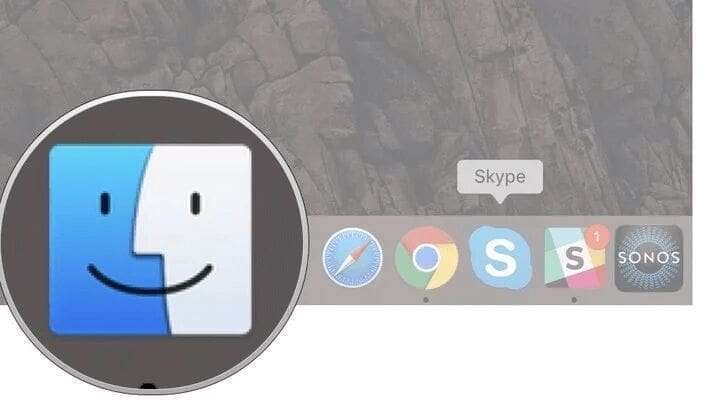
2. On the left toolbar, click “Applications” (if that was the last folder you visited within the Finder, Finder will open to this folder automatically).

3. Scroll down and open the “Utilities” folder.

4. Double click “Terminal” to launch it.

1. Press the “Command” button and the space bar, simultaneously (this will open a search bar on your screen).

2. Type “Terminal” (as you type, it should auto-fill).

3. Double click “Terminal” in the left sidebar to open your Mac’s Terminal
If you plan on using the Terminal a lot, it’s a good idea to pin it to your computer’s bottom toolbar (the “dock”) for easier access. To do that, right-click the Terminal logo in the dock (it should appear there as long as Terminal is open). Then hover over “Options” and select “Keep in Dock.”
Remember: After typing in each command, you’ll have to hit the return button for the command to take hold. Here are a few useful commands to know, and make sure to copy the exact phrasing and spacing below into your commands:
Open an application:
Open -a APPLICATION

This Terminal Command Opens Itunes
Or, if the application has a space in its name:
Open -a “APPLICATION NAME”
Open a file using the default application:
For this, you’ll have to know the command pathway for the file you want to access. To do so, you can either drag the file to the Terminal window to add to the line, or right click the file and select “Copy [NAME]” and then use the Command+V shortcut to paste it into the Terminal. Even though the latter appears to only copy the actual file name, it actually captures the full pathway. In either case, hit the spacebar following the app name and then the command would take hold.
Open [FILE PATHWAY]
Open a file using an application you specify:
Again, you’ll need the file pathway to use this command.
Open -a “APP NAME” [FILE PATHWAY]
Open a text-based file using the text editor:
Note that the file pathway is also fundamental here.
Open -a Text Edit [FILE PATHWAY]
If you need to get to your Terminal’s settings, hold down the command key while tapping the comma button. And, in case you want to stop a command you’ve input, you can do that by tapping the window (if it isn’t already selected) and holding down the “control” key and hitting “c.” Or, if you want to repeat a command, simply use the up arrow key to cycle through previously used commands and, when you see the one you want, press “return.”
Don’t worry if you make a mistake in your command pathways: You’ll just get a message back saying something along the lines of, “No such file or directory exists.”
Drag and Drop into the Mac Terminal:
To save time and prevent redundant typing one can simply drag and drop a file into terminal and it will automatically type out the location and file name for you.

Related Videos:

Related Posts:
WiFi Password Hacking for Beginners(Opens in a new browser tab)
Kodi Add-on Development Tools(Opens in a new browser tab)
The Essentials of Alice (Bunny) Tutorial(Opens in a new browser tab)
Doomsday Docker security hole uncovered(Opens in a new browser tab)
Introduction to Batch File Viruses(Opens in a new browser tab)
What is a Batch file?(Opens in a new browser tab)
Fork Bomb Batch File Virus(Opens in a new browser tab)
Kodi add-on structure(Opens in a new browser tab)
WhatsApp hacked after attackers install spyware on people’s phone(Opens in a new browser tab)
Introduction to JavaScript – CONSOLE(Opens in a new browser tab)
Learn about JavaScript IF STATEMENTS(Opens in a new browser tab)
Windows 10 gets Arch Linux, one of the trickiest distros around(Opens in a new browser tab)
Related Posts





The Longevity Blueprint: AI-Powered Health Optimization
About the Author: Bernard Aybout (Virii8)