

Approx. read time: 2.4 min.
Post: Virii8 SignFlow
Virii8 SignFlow – fast . easy. secure.
Virii8 SignFlow
PDF/DOC Routing • Cumulative Identity • Bernard Aybout
> DOC_SYS: Virii8 SignFlow Protocols_
System overview, roles, capabilities, and end-to-end technical workflows for the Virii8 SignFlow engine.
> 1) Roles and Capabilities_
[ USER_01: Sender ]
The person who starts the request.
- Universal Upload: Uploads documents in PDF or Word (DOCX/DOC) format.
- Smart Routing: Configures multi-recipient sequential routing (A → B → C).
- Real-time Oversight: Can download original documents, cumulative signed versions, and the Certificate of Completion.
- Nuclear Cancel: Deletes the entire request, wipes all server files, and notifies all parties immediately.
[ USER_02: Signer(s) ]
Sequential recipients.
- Adaptive Security: Unlocks portal using a shared password or a unique per-signer password set on the first visit.
- Turn Enforcement: Accesses signing tools only when routing logic activates their turn.
- Signature Studio: Draw (custom ink/thickness) or Type (professional serif rendering).
- Cumulative Signing: Sees the document with all previous signers’ stamps already embedded.
- Finalization: Advances the document to the next person with one click.
> 2) New & Upgraded Core Features_
[A] Cloudmersive Word-to-PDF Engine
- No-Install Conversion: Uses a cloud API to convert DOC/DOCX files into signable PDFs on the fly.
- Silent Processing: System detects Word doc, sends to cloud for perfect-fidelity rendering, and serves PDF result automatically.
- Server-Side Caching: Converted PDF is saved to the server so subsequent signers experience instant loading.
[B] Cumulative Sequential Signing
- One Living Document: Uses a “Cumulative Base.” Signer #2 builds on top of Signer #1’s output.
- Intermediate Cleanup: System automatically deletes “half-signed” intermediate files to save disk space and maintain privacy.
[C] Signature Studio (Ink & Tip Control)
- Custom Ink: Select from a color picker or use presets (Black, Navy Blue).
- Pressure Simulation: Tip thickness slider (1px to 12px) allows for fine-line or bold signatures.
- Transparent PNG Technology: Signatures stored as high-res PNGs to look “natural” over text and sharp on certificates.
> 3) End-to-End Workflow (The Sequence)_
Step 1: Request Creation
Sender uploads files. System validates headers (searching for %PDF marker) and notifies Signer #1.
Step 2: Signer Portal & Unlock
Signer unlocks portal. If Word doc, Matrix-spinner appears: "Converting Word to PDF..."
Step 3: Action Protocol
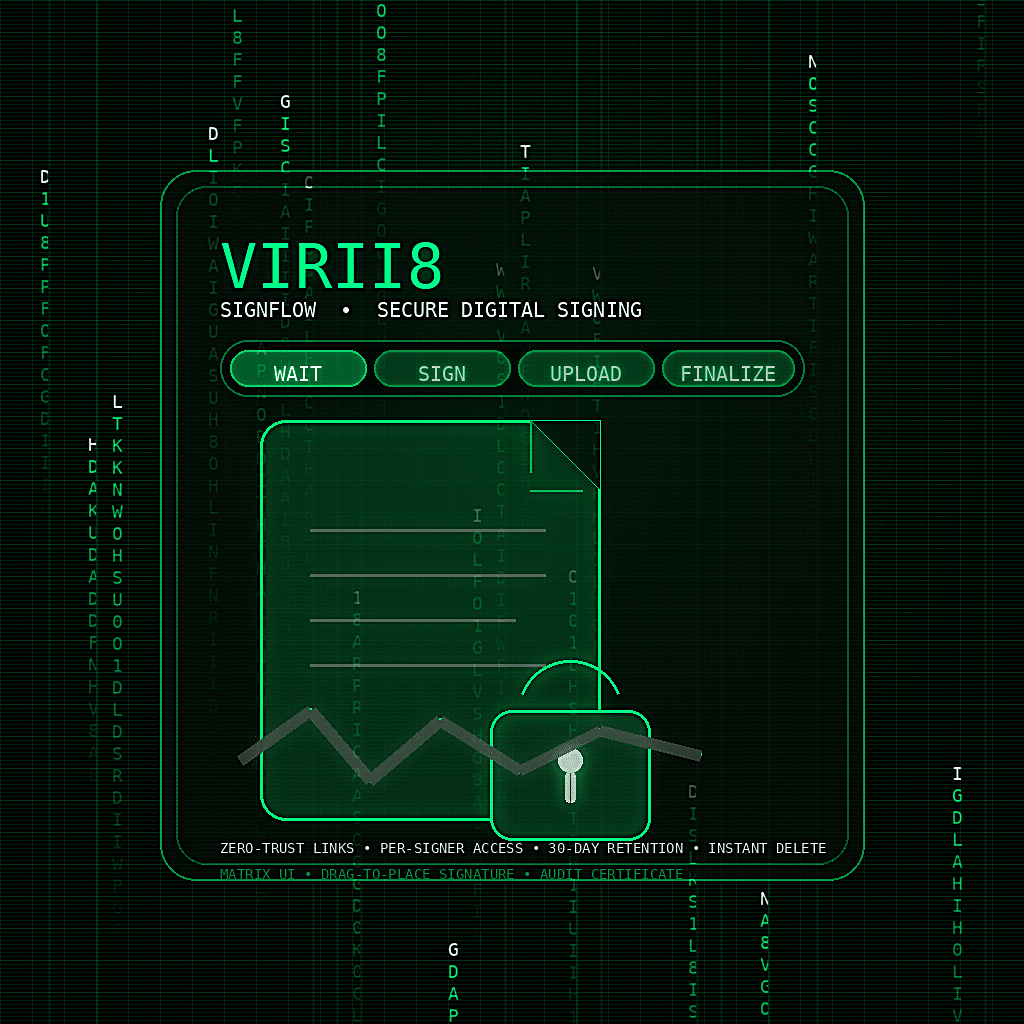
- WAIT: UI is read-only if not turn.
- SIGN: Draw/type signature.
- UPLOAD: Drag cumulative PDF, place stamp, merge via
pdf-lib. - FINALIZE: Step complete, email next signer.
> 4) Retention & Deletion_
- Auto-Purge (30 Days): Daily cron job deletes all associated files and clears database rows.
- Privacy-First Deletion: Manual deletion triggers
unlink()for every disk file and immediate transient expiration for security tokens.
> 5) Certificate / Audit Trail_
- Cumulative Tracking: Lists SHA-256 hash of original and final fully-signed document.
- Visual Proof: Displays PNG signatures next to timestamps and IP addresses.
- Reliability: Fixed object numbering ensures valid viewing across Adobe, Chrome, Apple Preview.
> 6) Technical Architecture_
- Vibe: Dark mode Matrix aesthetic with neon green accents and monospace fonts.
- Performance: Optimized for Rocket.net and Cloudflare. Uses sacrificial memory clones to prevent browser crashes.
- Binary Integrity: Forced buffer cleaning (
ob_end_clean) ensures zero server whitespace corruption. - Mobile-First: Draggable overlays touch-optimized for iPads and smartphones.
Related Posts




One Comment
Leave A Comment
The Longevity Blueprint: AI-Powered Health Optimization
Current step:1AI-Human Medical Analyzer: Smarter, Personalized Health
2AI-Human Medical Analyzer: Smarter, Personalized Health
About the Author: Bernard Aybout (Virii8)

I am a dedicated technology enthusiast with over 45 years of life experience, passionate about computers, AI, emerging technologies, and their real-world impact. As the founder of my personal blog, MiltonMarketing.com, I explore how AI, health tech, engineering, finance, and other advanced fields leverage innovation—not as a replacement for human expertise, but as a tool to enhance it. My focus is on bridging the gap between cutting-edge technology and practical applications, ensuring ethical, responsible, and transformative use across industries.
MiltonMarketing.com is more than just a tech blog—it's a growing platform for expert insights. We welcome qualified writers and industry professionals from IT, AI, healthcare, engineering, HVAC, automotive, finance, and beyond to contribute their knowledge. If you have expertise to share in how AI and technology shape industries while complementing human skills, join us in driving meaningful conversations about the future of innovation. 🚀






I’ve tried plenty of expensive platforms, but Virii8 SignFlow is a total game-changer for my workflow. I needed a reliable doc signing solution for a multi-signer contract, and I couldn’t believe how fast it was to route the files through my entire team.
The app handled my Word docs and PDFs flawlessly—the automatic conversion to a signable format was seamless. What really stands out is the cumulative signing; it builds one clean document as it goes, then lets you certify the whole thing with a professional audit trail at the end. Plus, the auto purge feature gives me peace of mind knowing my data isn’t sitting on a server forever. To get this level of polish and security for free is rare. Virii8 SignFlow has officially replaced the ‘print-sign-scan’ nightmare for me!