Approx. read time: 5.8 min.
Post: How to make Windows 10 look and feel like Windows 7
How to make Windows 10 look and feel like Windows 7. Windows 10 is arguably one of the significant improvement over the previous Windows 7. Being the latest version, Windows 10 has seen a lot of significant improvements in security, performance, and efficiency.
It certainly has lots of new features like Cortana, Universal apps, Classic Start Menu and many more. However, Windows 7 still remains popular among most of the Window users and is one of the favorite platforms despite the steady growth of the new version. Sadly, Windows 7 is counting its last days.
Make Windows 10 look like Windows 7
- Change the Windows 10 Start Menu to look like Windows 7
- Make Windows 10 Explorer look like Windows 7 Explorer
- Customize the color scheme of Windows Title Bars to look like Windows 7
- Remove Cortana Box & Task View from the Taskbar
- Turn Off the Action Center
- Switch to local account instead of Microsoft Account
- Add shortcut to Classic Personalization Windows for quick access
- Change the Desktop Background & Icons to Windows 7.
If you are an admirer of this decade-old Windows 7 platform and looking out to have a Windows 7 like interface on your latest Windows 10 platform then you are on the right place. Without any doubt, it is always wise to install the latest version of Windows to have a secured platform and have the benefit of more features with improved efficiency.
Windows 7 remains popular even now for its aesthetics and if you still miss Windows 7, you can have the best of both the worlds by making your Windows 10 look like Windows 7 without sacrificing the useful features of Windows 10.
While there is no direct method to switch back to the Windows 7 interface, you can use third party software and tweak settings to make your Windows 10 platform appear and act like Windows 7. In this article, we step you through a variety of tips and tricks to make your Windows 10 look like Windows 7.
1] Change the Windows 10 Start Menu to look like Windows 7
If your fan favorite of Windows 7 design, then you will definitely like its classic Start menu. You can convert the Windows 10 Start Menu to look like Windows 7 using a free tool called classic Shell tool. Follow the below steps to use this tool to modify your Windows 10 Start Menu.
Download and install Classic Shell. The latest stable version of Classic Shell is 4.3.1 and is available for download on classicshell.net.
Launch Classic Shell. Click the Start Menu Style tab and choose the Windows 7 Style from the options.

How To Make Windows 10 Look And Feel Like Windows 7
Download the images of the Windows 7 Start orb here.
Now go back to the Classic Shell menu and choose the option Custom at the bottom of the window.
Click Pick image and select the downloaded Windows 7 start orb.
Navigate to the Skin tab and choose the option Windows Aero from the Skin drop-down menu.

How To Make Windows 10 Look And Feel Like Windows 7
Click OK to apply the new settings.
TIP: Development of Classic Shell has stopped. You may use Classic Start now rebranded as Open Shell.
2] Make Windows 10 Explorer look like Windows 7 Explorer
If you like the Windows 7 ‘s File Explorer over the current File Explorer, you can use the software called OldNewExplorer that will make your Windows 10 Explorer to Windows 7 Explorer.
3] Customize the color scheme of Windows Title Bars to look like Windows 7
The Windows Title Bar is White by default. You can customize the colors of the Title bar to resemble Windows 7 using inbuilt settings.

How To Make Windows 10 Look And Feel Like Windows 7
- Open Settings and navigate to Personalization.
- Click Colors option from the menu and pick the Windows colors that closely resembles Windows 7.
- Select the box for Title bars to display the accent colors on the Windows Title Bars.
4] Remove Cortana Box & Task View from the Taskbar
Windows 10 has search box integrated with the Cortana. If you want to have Windows 7 like interface, you can remove the Cortana from the taskbar using the inbuilt settings.
Right-click anywhere on the surface of Taskbar. From the menu, deselect the Show Task View.

How To Make Windows 10 Look And Feel Like Windows 7
Tap Cortana from the menu and select the option Hidden from the submenu.
5] Turn Off the Action Center
Action center is an option available in Windows 10 which helps to keep a tap on all the notifications. You can disable the Action center using inbuilt settings.
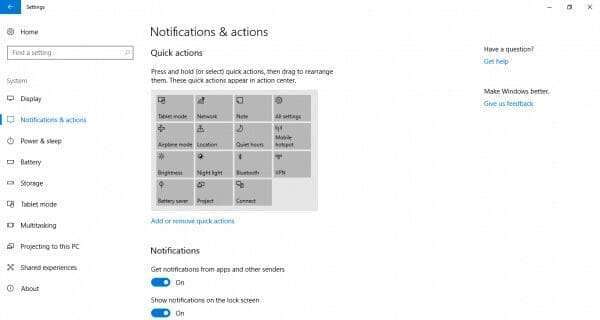
Open Settings and navigate to System.
How To Make Windows 10 Look And Feel Like Windows 7
Click Notification & Actions from the menu and Toggle the switch to off on the slider to disable the Action Center.
6] Switch to local account instead of Microsoft Account
In Windows 7, you logged into your computer with your local account unlike the Windows 10 which asks you for Microsoft account by default. You can use the local account to login in Windows 10 by using the inbuilt settings.
7] Add shortcut to Classic Personalization Windows for quick access
You can enable the Personalization window from Windows 7 and add a shortcut to the desktop for easy access to the classic personalization window in Windows 10.
Right click on the desktop and select New from the menu. Choose Folder from the submenu to create a new Folder.
Name the folder as “Personalization.{ED834ED6-4B5A-4bfe-8F11-A626DCB6A921}”. The new folder automatically changes to the personalization icon.

How To Make Windows 10 Look And Feel Like Windows 7
Click on the icon to access the classic Personalization window directly from the desktop.
8] Change the Desktop Background & Icons to Windows 7
You can change the desktop background to the Windows 7 wallpaper to make your Windows 10 appear like Windows 7. Simply download the Windows 7 wallpaper for desktop and set it as your desktop background. Try the free icon packs from here to make your windows 10 computer resemble windows 7.
Your Windows 10 should now look like Windows 7!
Related Videos:

Related Posts:
Best free Macro Automation software for Windows 10(Opens in a new browser tab)
Windows 10 gets Arch Linux, one of the trickiest distros around(Opens in a new browser tab)
Why JavaScript developers are choosing TypeScript(Opens in a new browser tab)
$25 Raspberry Pi add-on gets you started with edge computing AI(Opens in a new browser tab)
Dharma Ransomware Uses Legit Antivirus Tool To Distract Victims(Opens in a new browser tab)
Related Posts



The Longevity Blueprint: AI-Powered Health Optimization
About the Author: Bernard Aybout (Virii8)